
How to Improve IPTV Streaming Stability
Not a fix-it-when-it-breaks checklist, but the ongoing setup and habits that make buffering less likely to happen in the first place.
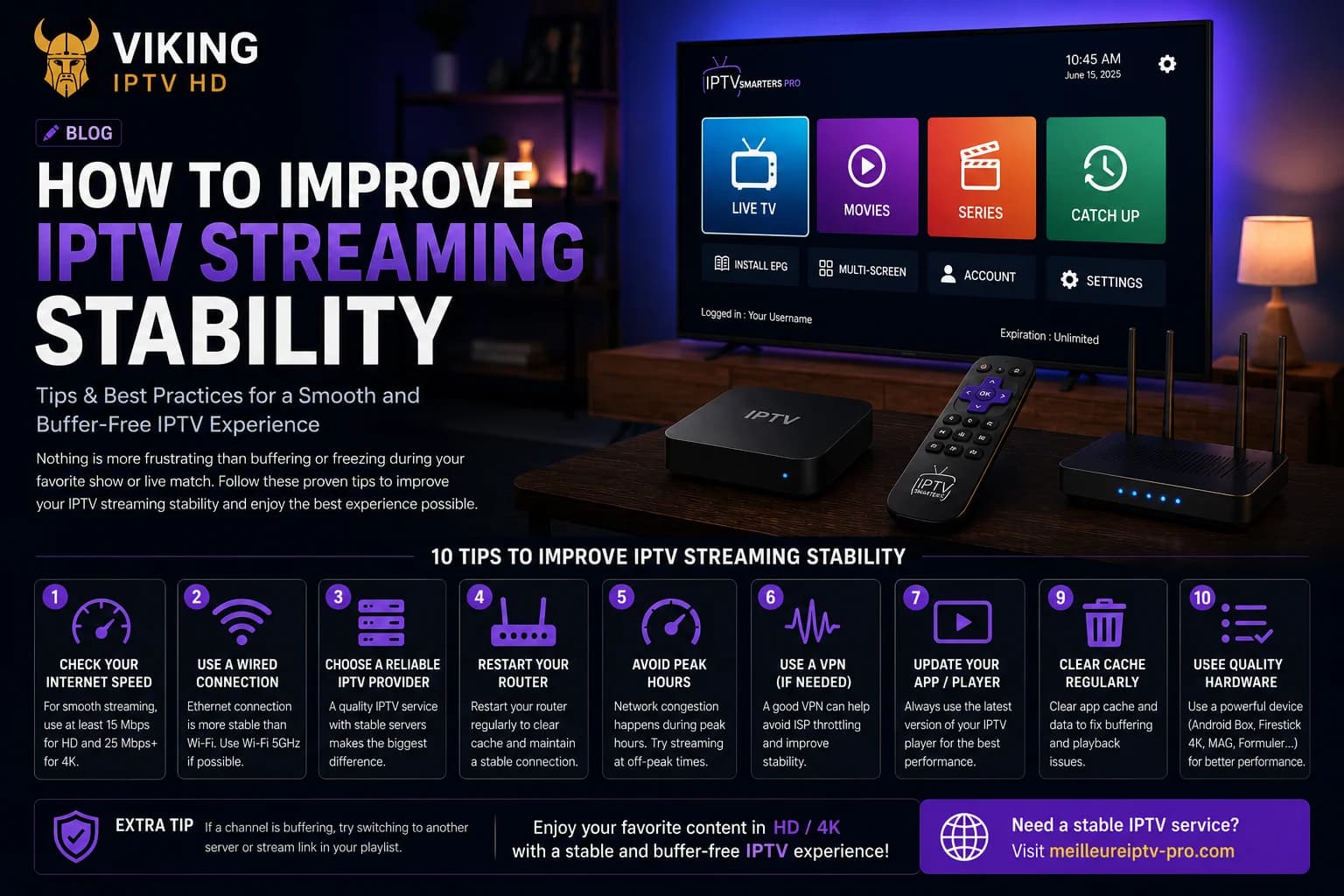
Our buffering guide is a reactive checklist for when playback is already stuttering. This article is about the other side of that: the network setup and day-to-day habits that reduce how often you run into buffering in the first place. None of this is a guarantee — streaming quality depends on multiple factors outside any single setting — but each of these genuinely reduces the odds.
Network Quality Matters More Than Any Single Setting
Before adjusting anything in a player app, it's worth being honest about your network itself. IPTV streams continuously rather than downloading in advance, so your connection needs to sustain a reasonably steady speed for the duration of playback — a network that's merely "fast on a speed test" but inconsistent under real load will still buffer. We won't state a specific Mbps requirement here, since actual needs vary by stream quality and aren't something we can guarantee — but a connection that struggles with other everyday streaming is unlikely to perform better for IPTV.
Wi-Fi vs Wired Connection
A wired ethernet connection is more consistent than Wi-Fi for sustained streaming, because it isn't subject to interference from other devices, walls, or neighboring networks. If your streaming device supports ethernet — directly or through a USB adapter — using it removes an entire category of variability, even on a Wi-Fi network that otherwise tests reasonably well.
If wired isn't practical, prioritize the 5GHz Wi-Fi band over 2.4GHz where your router and device both support it — 5GHz is less crowded in most homes and better suited to sustained video streaming, at the cost of slightly shorter range.
Router Placement
Router position affects Wi-Fi-based streaming more than most people expect. Keep the router elevated and free of obstruction rather than tucked in a cabinet, and minimize walls between the router and your streaming device where possible. If your streaming setup is in a room far from the router, a mesh access point or Wi-Fi extender in that room is generally more effective than trying to boost the main router's power.
Bandwidth Considerations
IPTV shares your home network with everything else using it — other streams, large downloads, cloud backups, and other connected devices all compete for the same bandwidth. If buffering tends to happen at predictable times (evenings, when other people in the household are also online), that's a strong sign the cause is contention for bandwidth rather than your IPTV setup itself. Pausing large downloads or other 4K streams while watching is a simple, effective habit.
Device Performance
Older or budget streaming devices can struggle to decode higher-bitrate streams smoothly even on a strong network, since video decoding uses real processing power. Closing other apps running in the background before starting a stream, and restarting your device periodically to clear accumulated background processes, both help keep playback smooth on lower-powered hardware.
Player Settings Worth Checking
Most player apps let you adjust buffer size — a larger buffer trades a slightly longer delay when switching channels for more resilience against brief network hiccups mid-stream. If you experience occasional short stutters rather than sustained buffering, increasing buffer size slightly is worth trying. Where available, hardware decoding is generally preferable to software decoding, since it offloads processing from the device's CPU.
Reducing Unnecessary Network Load
Some players refresh EPG or channel-list data automatically in the background at set intervals, which briefly uses bandwidth alongside your active stream. If your player app allows manual rather than automatic EPG refresh, switching to manual can reduce small, avoidable interruptions — though this is a minor optimization rather than a primary fix for ongoing buffering.
A Simple Ongoing Troubleshooting Habit
If buffering does happen despite these steps, the fastest way to narrow down the cause is asking one question: is it one channel, or everything? One channel buffering while others play smoothly points to that specific stream, not your setup. Buffering across every channel points back to your network or device — at which point our full buffering guide walks through the reactive checklist in detail. For anything not resolved by network and device changes, our devices section and Android TV setup page cover device-specific considerations, and browsing player apps is worth doing if your current one consistently underperforms regardless of network changes. Note that a stuck program guide or a playlist that won't load at all are separate problems from playback stability, with their own dedicated fixes.
FAQ
What internet speed do I actually need for IPTV?
We don't state a specific number, since real requirements vary by stream quality and network conditions, and we can't guarantee performance based on a speed test alone. A connection that already struggles with other everyday streaming is unlikely to perform better for IPTV.
Is Wi-Fi good enough, or do I need Ethernet?
Wi-Fi works for most setups if the signal is strong and consistent. Ethernet removes Wi-Fi variability entirely and is worth using if your device supports it and buffering persists on Wi-Fi.
Does restarting my streaming device actually help?
Yes, particularly on lower-powered devices — it clears background processes that accumulate over time and can compete with the player app for memory and processing power.
Ready to get started?
See what's included with a subscription, or go straight to plans and pricing.