How to Install IPTV on Sony Smart TV
Most current Sony TVs run Android TV or Google TV, which changes how IPTV setup works compared to Samsung or LG. Here's the practical walkthrough.
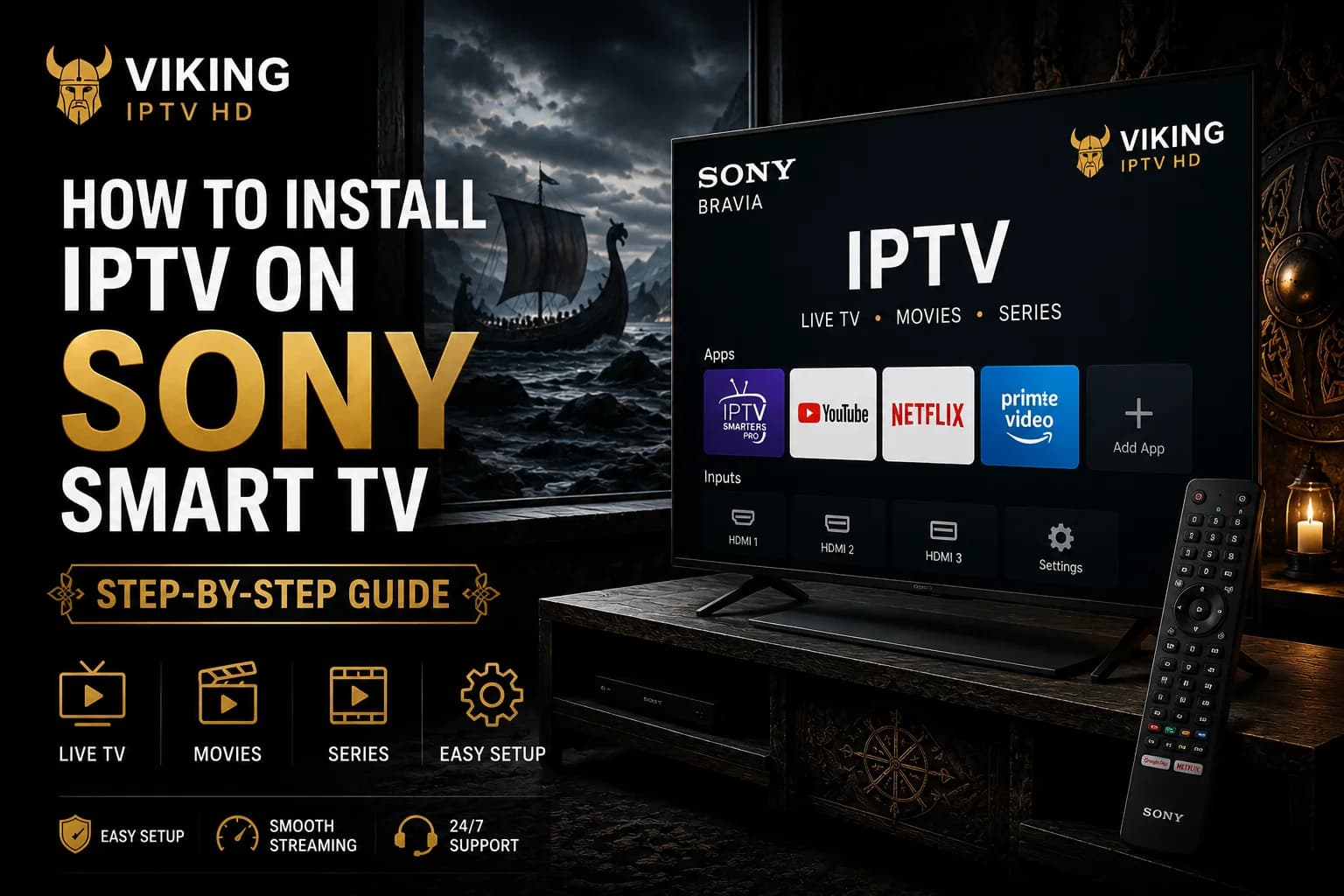
Sony doesn't run its own separate TV operating system the way Samsung and LG do — most current Sony Smart TVs run Android TV or Google TV instead, licensed from Google. That single fact changes the entire setup story, and it's worth understanding before you start, since it means the process looks much closer to our Android TV guide than to Samsung or LG's more closed platforms.
Before You Start: Which Platform Does Your Sony TV Run?
Check Settings > About on your TV, or look at the home screen layout — if you see a row-based interface with a Google Play Store icon and Google Assistant built in, you're on Android TV or Google TV (the newer interface layout, introduced from around 2021 onward on Sony's Bravia range). Almost all Sony Smart TVs sold in the last several years fall into this category.
This matters because Android TV and Google TV give you access to the Google Play Store, which is a considerably more open app ecosystem than Samsung's Tizen or LG's webOS. It doesn't guarantee any specific app is listed, but the odds of finding a working IPTV player directly on the TV are meaningfully better.
What You Need
- A Google account signed in on the TV for Play Store access
- A stable Wi-Fi or wired ethernet connection
- Your Viking IPTV HD server URL, username and password, or your M3U link
- About 10–15 minutes for a first-time setup
Installing a Player App
From the home screen, open the Google Play Store (usually accessible from the apps row or via search) and look for an IPTV or media player app compatible with Android TV. IPTV Smarters Pro and TiviMate are both commonly used on Android TV-based Sony sets.
Select Install and wait for the download to finish — this is generally straightforward on Sony's Android TV hardware, which tends to have more processing headroom than budget Smart TV platforms. If Play Store search doesn't turn up a suitable app for your specific region, that's a Play Store distribution limitation rather than a Sony-specific restriction, and connecting an external device such as a Firestick remains an option.
Adding Your IPTV Details
Open the installed player app and choose your connection method. For Xtream Codes, you'll enter a server URL, username and password in three separate fields. For M3U, you'll paste a single playlist URL. See our Xtream Codes and M3U playlist guides if you're not sure which one your access details use.
Sony remotes typically use standard D-pad navigation for the on-screen keyboard, which tends to be less error-prone than pointer-based typing on other platforms — but it's still worth double-checking each field against your original login details before submitting, since a single mistyped character is the most common reason a first connection attempt fails. If you installed TiviMate, our M3U playlist walkthrough for TiviMate covers its Source Manager screen in detail.
Loading Channels and EPG
Once connected, your channel list and VOD library (where included) download automatically — allow a minute or two depending on your connection and the size of the list. If the EPG doesn't populate immediately, check your player app's settings for a manual refresh option; guide data sometimes loads slightly behind the channel list itself.
A Note on App Availability
We don't guarantee that any specific IPTV player app is available in the Play Store for every Sony TV model or region — availability changes over time and isn't something a subscription provider controls. If your preferred app isn't listed, check for an alternative compatible player before assuming the platform itself doesn't support IPTV.
Common Setup Problems
- Preferred app not in the Play Store — availability varies by region and TV model; try an alternative compatible player.
- Login rejected — recheck server URL, username and password character by character.
- App runs but playback stutters — usually network-related rather than a Sony hardware issue; see our buffering guide.
- EPG grid appears empty — refresh EPG data from the app's own settings menu.
Tips for Better Streaming
- Use wired ethernet if your Sony TV supports it and your setup allows the cable run — it removes Wi-Fi variability entirely.
- Keep the player app and the TV's system software updated, since Android TV apps receive regular compatibility patches.
- If playback is inconsistent rather than completely broken, work through our buffering guide before reinstalling anything.
FAQ
Do all Sony Smart TVs run Android TV?
Most current models do, running Android TV or the newer Google TV interface. Very old Sony Smart TV models predate this and may run a different, now-discontinued Sony platform — check Settings > About if you're unsure.
Is setting up IPTV on a Sony TV the same as on an Android TV box?
Very similar, since both use the same underlying platform and Google Play Store. The main practical differences are the remote layout and the exact home screen navigation.
What if my preferred IPTV player isn't in the Play Store?
Try an alternative compatible player first. App availability in the Play Store varies by region and can change over time — this isn't something we can control or guarantee.
Ready to get started?
See what's included with a subscription, or go straight to plans and pricing.