
How to Add an M3U Playlist to TiviMate
The exact steps for adding an M3U playlist inside TiviMate's Source Manager, including EPG linking and playlist troubleshooting.
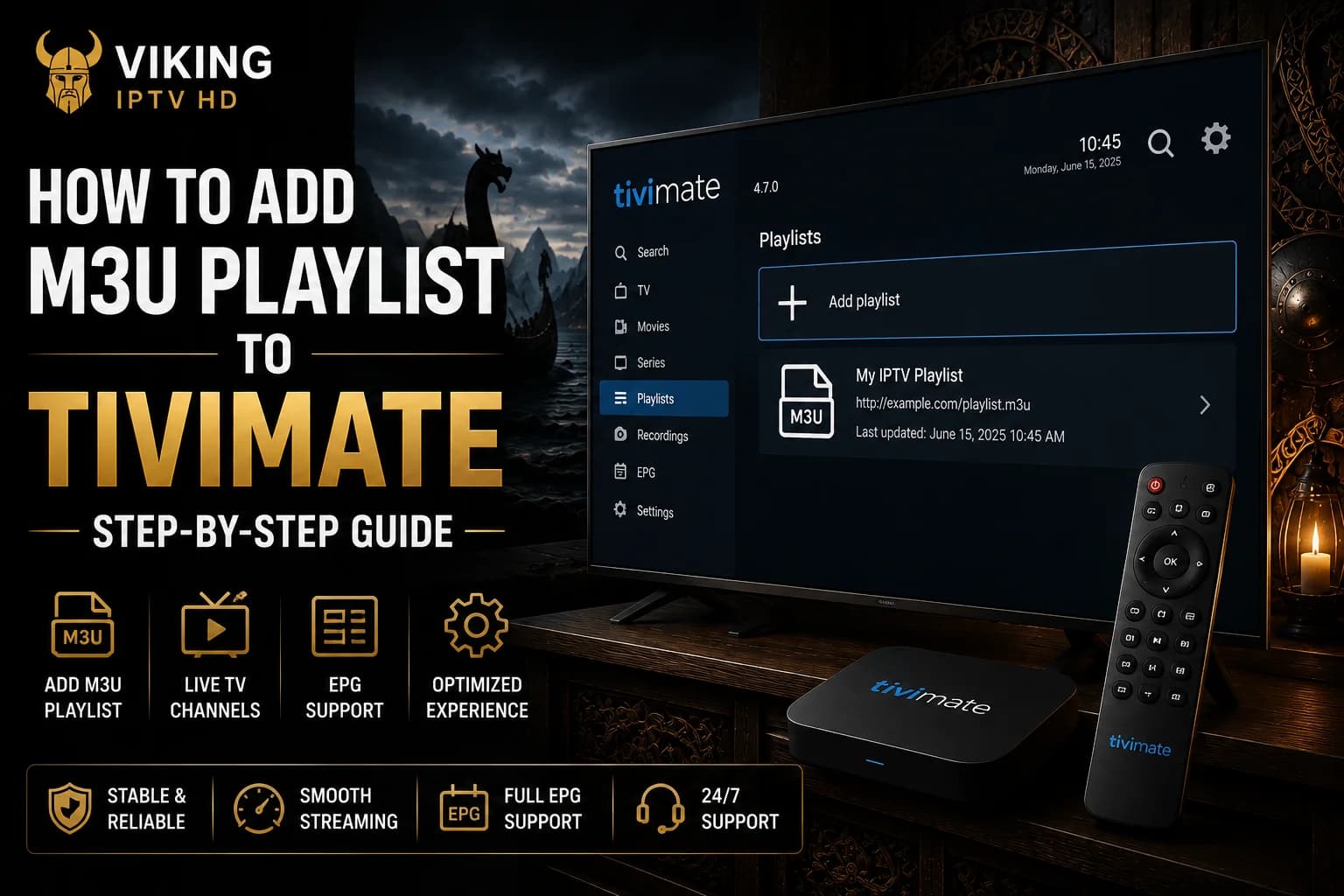
Our TiviMate overview covers the app generally, and our M3U playlist guide explains the playlist format itself. This article is the practical bridge between them — the specific Source Manager screens inside TiviMate you'll use to add an M3U playlist, link an EPG source to it, and troubleshoot the most common loading problems.
What You Need
- TiviMate installed on your device
- Your M3U playlist URL from Viking IPTV HD
- An EPG URL, if your subscription provides one separately from the playlist
Opening the Source Manager
On first launch, TiviMate prompts you to add a playlist directly. If you're adding one later, you can reach the same screen from the app's main settings under a Source Manager or Playlists section — this is where every connection TiviMate uses is added and managed.
Adding Your M3U Playlist
From the Source Manager, choose to add a new playlist and select the M3U (or "Xtream Codes / M3U URL") option. Paste your playlist link into the URL field exactly as provided — TiviMate will fetch and parse the file, which typically takes a few seconds depending on the playlist's size and your connection speed.
Give the source a name for your own reference (this is cosmetic, similar to labeling any saved login), then confirm. If the URL is accepted, TiviMate moves on to organizing your channel list automatically; if not, double-check the link for missing characters before retrying — see our Xtream Codes vs M3U comparison if you're unsure which format your details actually are.
Linking an EPG Source
M3U playlists often come with a separate EPG URL rather than having guide data bundled in, unlike some Xtream Codes connections. If your Viking IPTV HD access details include a separate EPG link, add it in the same Source Manager screen — usually a distinct field or a follow-up step after the playlist itself is saved.
Once both are added, TiviMate matches the EPG data to your channel list automatically in most cases. If some channels show a guide and others don't, that's typically a gap in the source data for those specific channels rather than something wrong with how you added the EPG link. If the guide is stuck or wrong rather than just missing for a few channels, see our EPG not updating guide.
Organizing Channels
TiviMate is built around a heavily customizable program guide, and part of that is channel organization — you can group channels into custom categories, reorder them, and mark favorites from the channel list screen. None of this is required for playback to work, but it's the main reason people choose TiviMate over a simpler player if they watch a lot of live TV.
Common Errors
- "Failed to load playlist" — usually a copy-paste error in the URL; re-copy the link fresh rather than retyping it manually.
- Playlist loads but channel count looks wrong — try removing and re-adding the source, which forces a full reload rather than a partial cache.
- EPG doesn't match some channels — normal if those specific channels lack EPG data at the source; not every channel guarantees full guide coverage.
- Playback works but is unstable — this points to a network or device issue rather than the playlist itself; see our buffering guide.
When to Re-Add the Source
If a playlist that was working suddenly stops loading, check your subscription status before troubleshooting the app itself — a lapsed subscription is a common and simple explanation. If your subscription is active and the playlist still won't load, removing the source in TiviMate's Source Manager and re-adding it with a freshly copied URL resolves most stubborn cases, since it clears any locally cached version of the old playlist.
FAQ
Does TiviMate support both M3U and Xtream Codes?
Yes, both are supported as connection types from the same Source Manager screen. This article focuses specifically on the M3U path.
Why does my EPG only show data for some channels?
This is usually a gap in the EPG source data for those specific channels, not a problem with how the EPG URL was added — not every channel is guaranteed full program-guide coverage.
What should I do if my M3U playlist stops loading in TiviMate?
First check that your subscription is still active. If it is, remove the source in TiviMate's Source Manager and re-add it with a freshly copied playlist URL, which clears any cached version of the old list.
Ready to get started?
See what's included with a subscription, or go straight to plans and pricing.